Welcome
Set up pre-order campaigns to sell products before they're available and manage customer expectations with delivery dates and payment options.
What is AOV.ai Pre-Order?
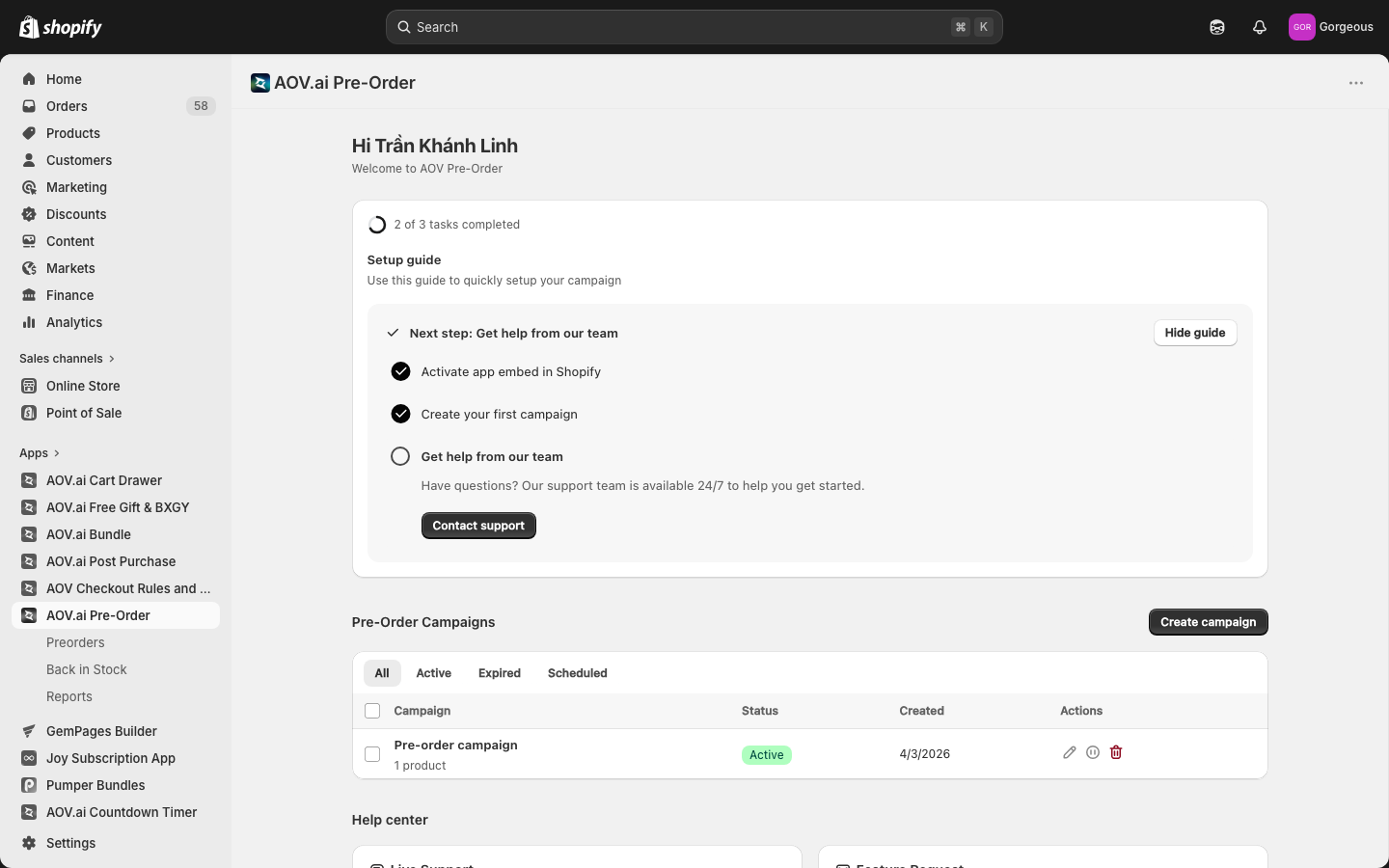
AOV.ai Pre-Order lets you sell products before they're in stock or officially released. Customers can place pre-orders on your Shopify store, and you control every aspect — from payment terms to delivery messaging.
Why Pre-Order?
Capture demand early
Start selling before products arrive. Pre-orders let you gauge interest, secure revenue upfront, and plan inventory based on actual customer demand rather than guesswork.
Flexible payment options
Choose between charging the full amount at checkout or collecting a deposit first. Partial payments lower the barrier for customers while still securing their commitment.
Keep customers informed
Set delivery dates, customize pre-order messages, and add badges so customers always know what to expect. Clear communication reduces support tickets and builds trust.
App Overview
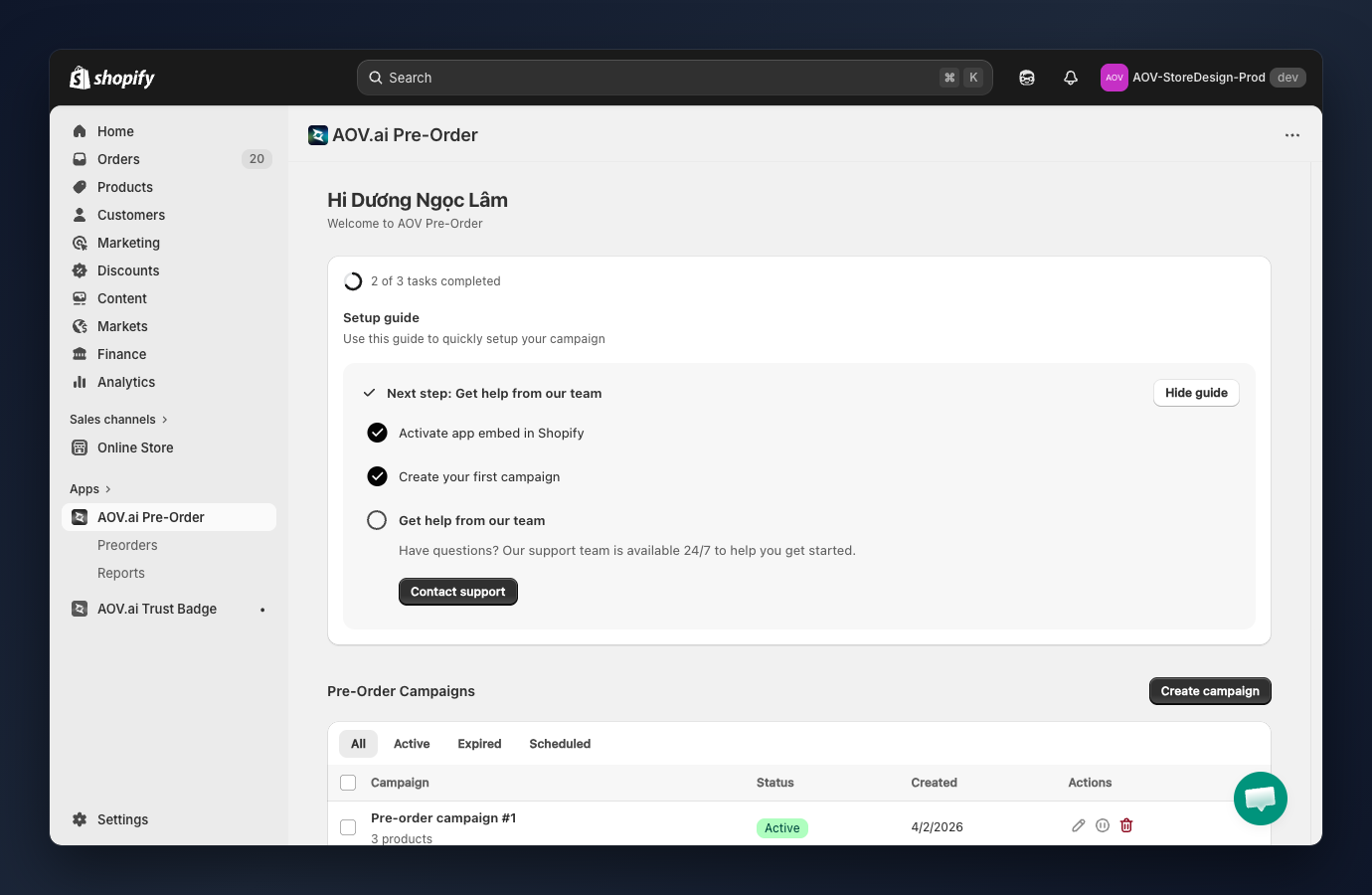
The dashboard gives you a complete overview of your pre-order setup:
- Setup guide: A 3-step onboarding checklist (Activate app embed in Shopify, Create your first campaign, Get help from our team). Each completed task auto-checks; you can hide the guide once you're set up.
- Pre-Order Campaigns: View recent campaigns (up to 5 per page) filtered by All / Active / Expired / Scheduled, plus quick actions to edit, pause, or delete.
- Help Center: Open live chat with the support team or submit a feature request.
Requirements before using
Before setting up your first pre-order campaign, make sure you have:
- Products added to your Shopify store
- The app embed activated in your theme (the Setup Guide will walk you through this)
- A clear idea of which products to offer as pre-order and their expected delivery dates
What's next?
| Guide | Description |
|---|---|
| Campaign List (opens in a new tab) | View, filter, and manage your pre-order campaigns |
| Campaign Settings (Step 1) (opens in a new tab) | Configure campaign name, product selection mode, pre-order trigger, continue selling, and delivery date |
| Payment Settings (Step 2) (opens in a new tab) | Choose full or partial payment, set deposit amount, inventory deduction, and order tags |
| Display Settings (Step 3) (opens in a new tab) | Customize button, badge, and messages |
| Orders & Reports (opens in a new tab) | View, filter, export pre-order reports, collect payments, reschedule due dates, and send shipping updates |